CHAIR HOW-TO: Chair Conflicts
OVERVIEW
Somtimes a Chair will have a paper in the same conference they oversee. To mitigate the conflict, that Chair's paper needs to be blocked from that Chair. This is done by either another Chair or a Track Chair if it is a multi-track conference.
ENABLE CHAIR CONFLICT
Note
Multi-Track Conferences will have Track Chairs. In this case, Chairs and Track Chairs are treated the same way. Both Chair and Track Chair can create, edit and remove Chair Conflicts
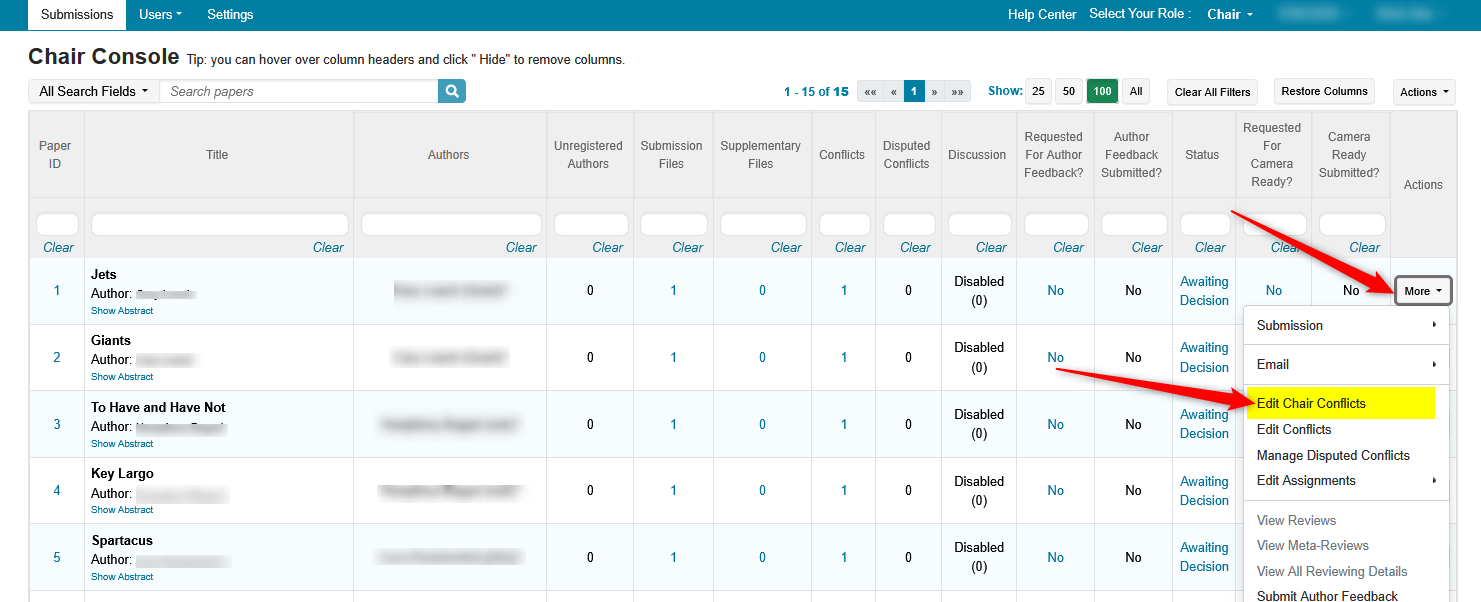
From the Chair Console, find the paper that needs to have the Chair Conflict enabled.
Click 'More->Edit Chair Conflicts'
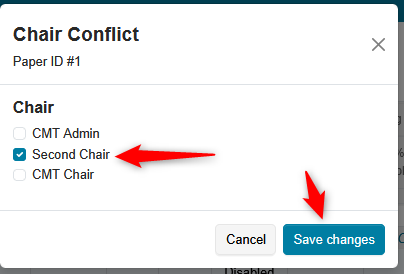
- Choose the Chair from the ensuiing dialog box. Save changes
Important
If ALL of the Chairs (and Track Chairs) are selected, the 'Save' button will be disabled. This is to prevent the paper from disappearing from all Chair and Track Chair views.
VERIFY CHAIR CONFLICT WAS ENABLED
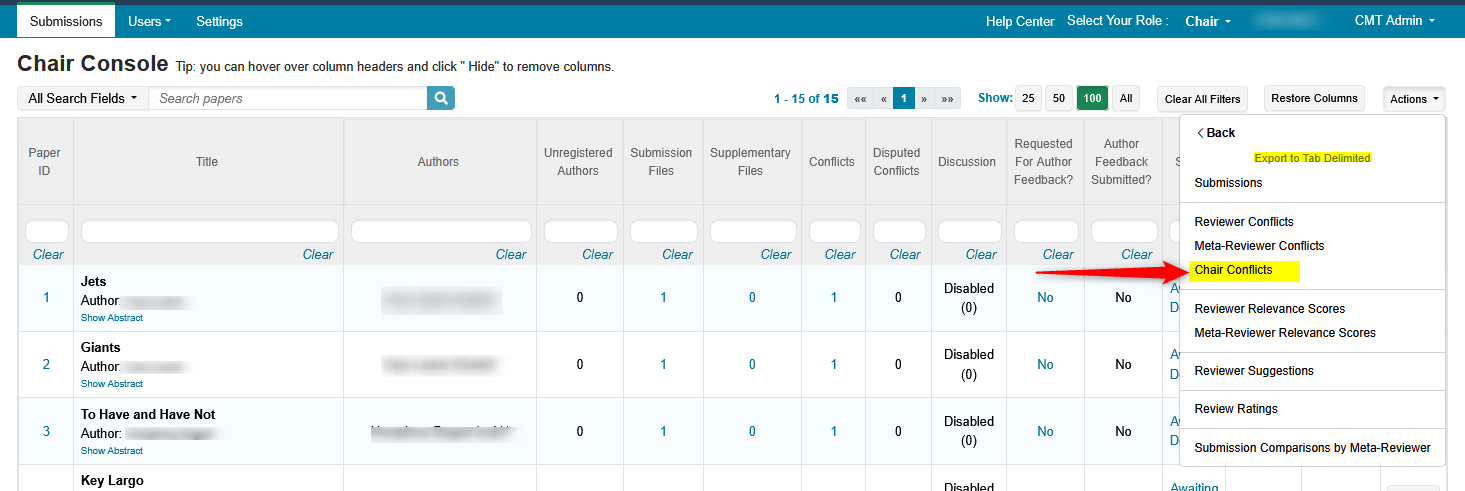
- From the Chair Console, go to 'Actions->Export to Tab Delimited
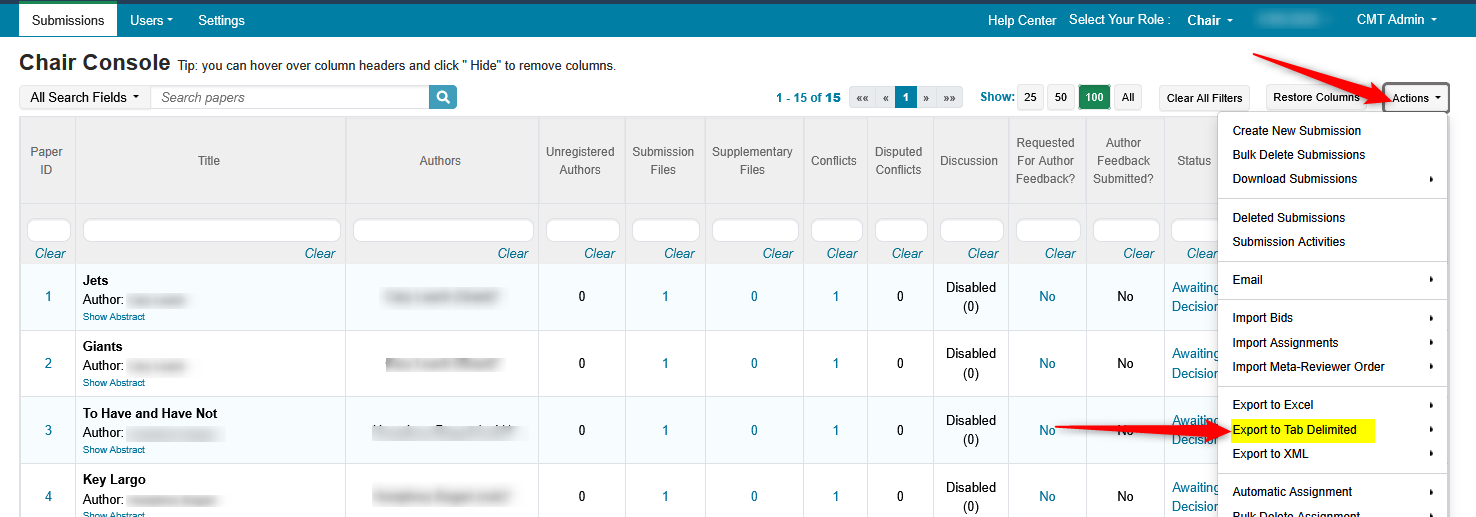
- In the secondary menu click 'Chair Conflicts'
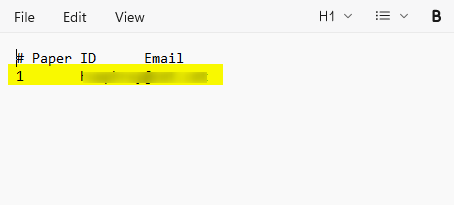
- Open the text file and see the Paper ID and email for the Chair that is conflicted
VERIFY CONFLICTED CHAIR CANNOT SEE PAPER
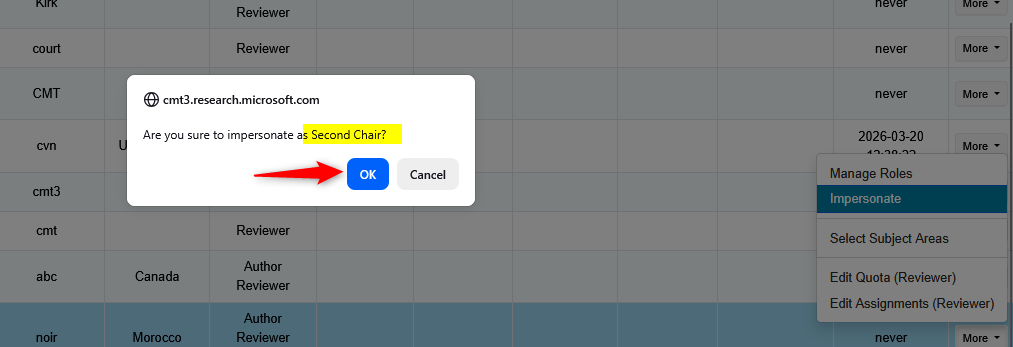
- Go to the 'Manage Users ' page, find 'Second Chair' and click 'More->Impersonate'
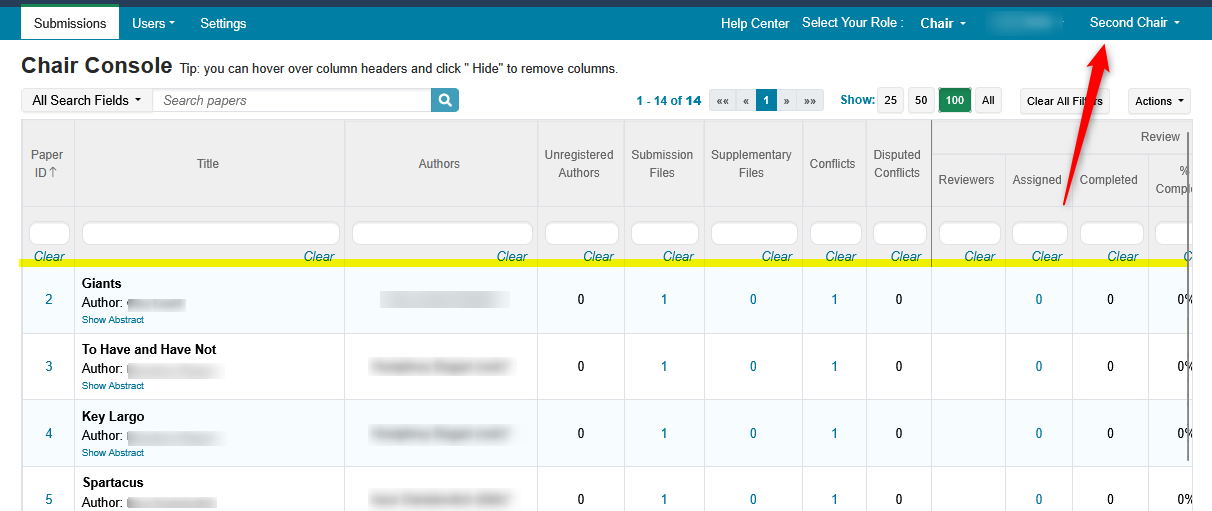
- Verify there is no Paper ID #1 that can be seen as that Chair.
REMOVE CHAIR CONFLICT
From the Chair Console, find the paper that needs to have the chair conflict removed.
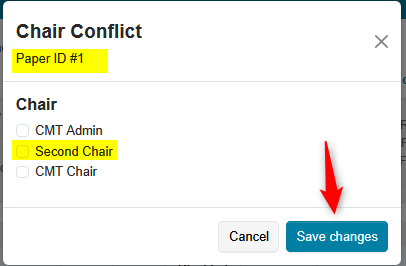
Click 'More->Edit Chair Conflicts'
- In the ensuing dialog box, deselect the checkbox for the conflicted Chair and save the change