CHAIR HOW-TO: Manage Conference Users Page
OVERVIEW
This will show the information given and functionality of the 'Manage Conference Users' page.
Note
There is no difference in the 'Manage Conference Users' page between Single and Multi-Track conferences.
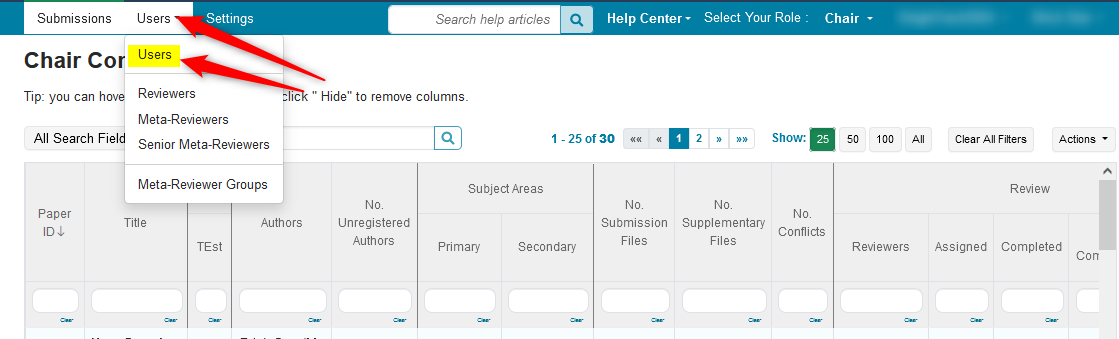
NAVIGATE TO THE MANAGE CONFERENCE USERS PAGE
- From the Chair Console, click Users tab, then 'Users.' The 'Manage Conference Users' page opens
MANAGE CONFERENCE USERS PAGE HEADERS
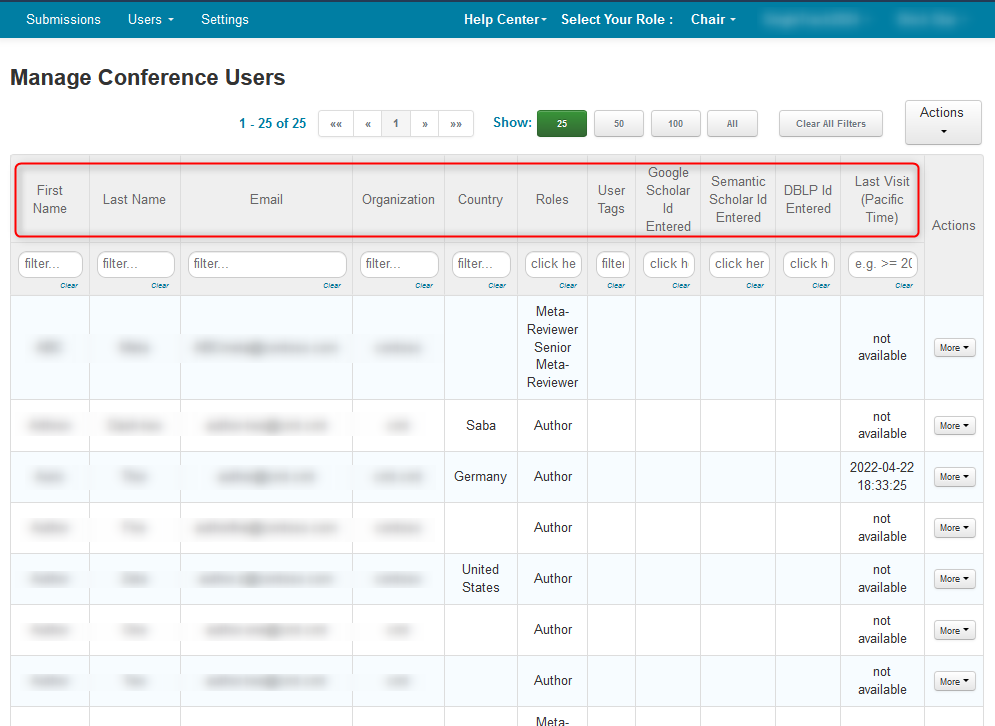
The headers for the columns are as follows:
First Name - First name of the user
Last Name - Last name of the user
Email - Email used for their CMT account
Organization - The user's organization
Country - The user's country
Roles - The user's role(s) in the conference
User Tags - All user tags that were added to that user
Google Scholar ID Entered - The user's Google Scholar ID entered in their profile
Semantic Scholar ID Entered - The user's Semantic Scholar ID entered in their profile
DBLP ID Entered - The user's DBLP ID entered in their profile
OpenReview ID Entered - The user's OpenReview ID entered in their profile
Domain Conflicts Entered - If any conflicting domains were entered
Individual Conflicts Entered - If any individual conflicts were entered
Individual Conflicts Attested - If any individual conflicts were disputed
Last Visit (Pacific Time) - The last time the user visited the conference
All of these columns can be filtered.
ACTIONS BUTTON
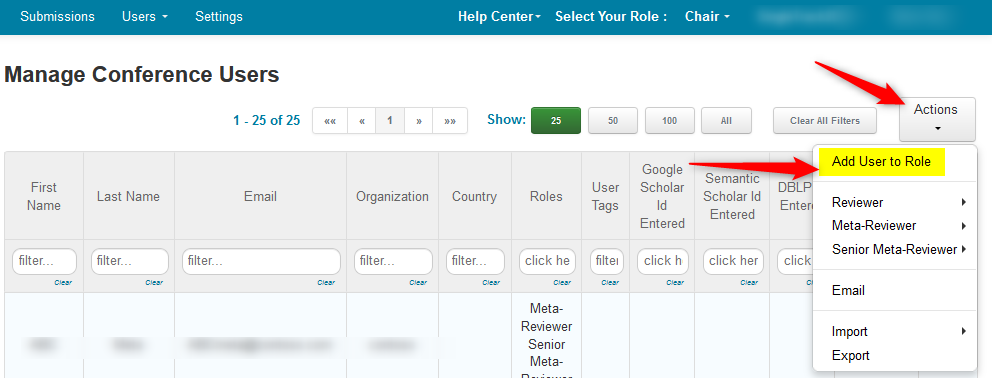
Here is a list of Actions from the 'Manage Conference Users' page
Add User to Role
Reviewer
• Invite
• Invite (Bulk)
• Manage (Invites)
• Import
• Manage
Meta-Reviewer
• Invite
• Invite (Bulk)
• Manage (Invites)
• Import
• Manage
Senior Meta- Reviewer
• Invite
• Invite (Bulk)
• Manage (Invites)
Import
• Domain Conflicts
• Individual Conflicts
• User Tags
Export
Delete • Individual Conflicts • User Tags
ADD USER TO ROLE
Click here for a more in-depth guide.
If a new user needs to be added to the conference (provided they already have a CMT account) it is done from this page.
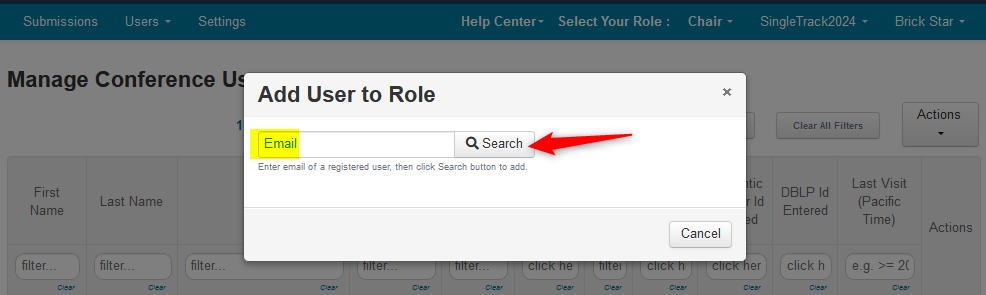
- Click Actions>Add User to Role
- Enter the email of the user, click 'Search.'
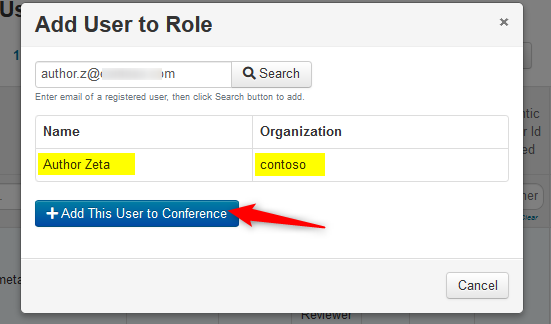
- If a valid CMT account, click '+ Add This User to Conference'
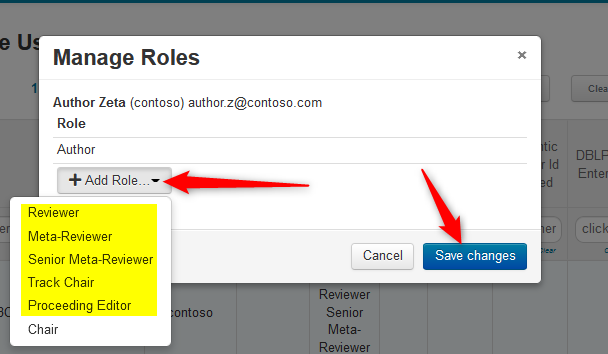
Choose a role form the 'Add Role' dropdown.
- Click 'Save changes.'
REVIEWER INVITE
- From the 'Manage Conference Users' page, click Actions>Reviewer
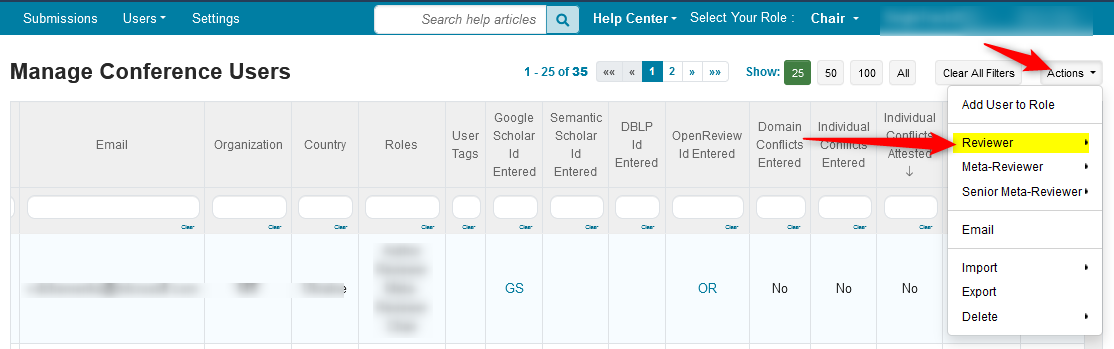
- Click 'Invite' from the secondary menu
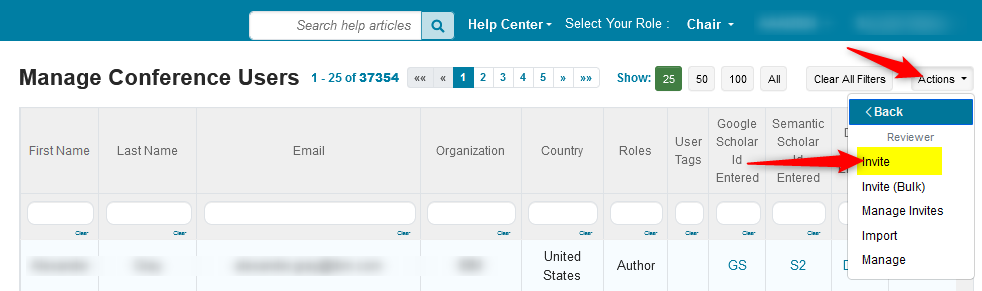
Click here for a more in-depth guide to inviting individual reviewers.
REVIEWER INVITE (BULK)
- From the 'Manage Conference Users' page, click Actions>Reviewer
- Click 'Invite (Bulk)' from the secondary menu
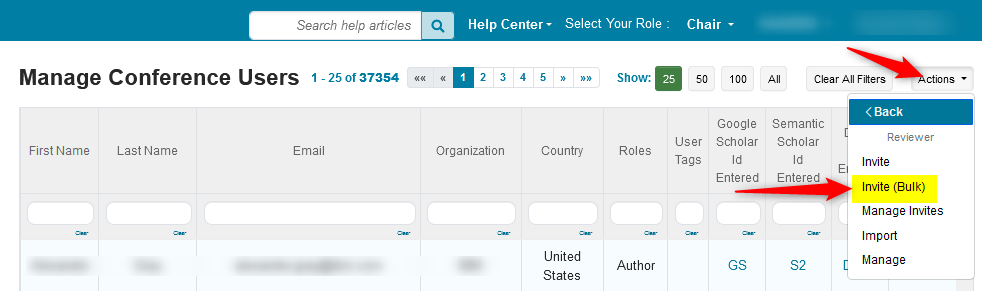
Click here for a more in-depth guide to inviting reviewers in bulk.
REVIEWER MANAGE INVITES
- From the 'Manage Conference Users' page, click Actions>Reviewer
- Click 'Manage Invites' from the secondary menu
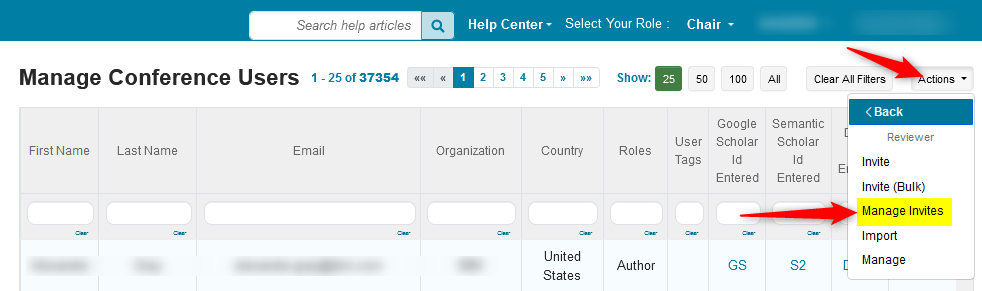
Click here for a more in-depth guide to managing reviewer invites.
REVIEWER IMPORT
- From the 'Manage Conference Users' page, click Actions>Reviewer
- Click 'Import' from the secondary menu
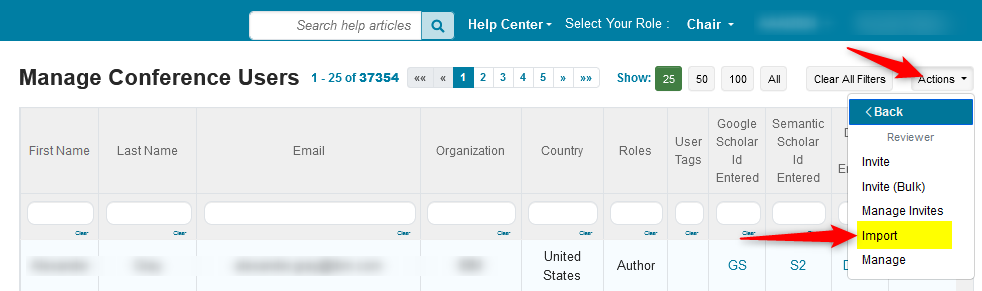
Click here for a more in-depth guide to importing reviewers.
REVIEWER MANAGE
- From the 'Manage Conference Users' page, click Actions>Reviewer
- Click 'Manage' in the secondary menu
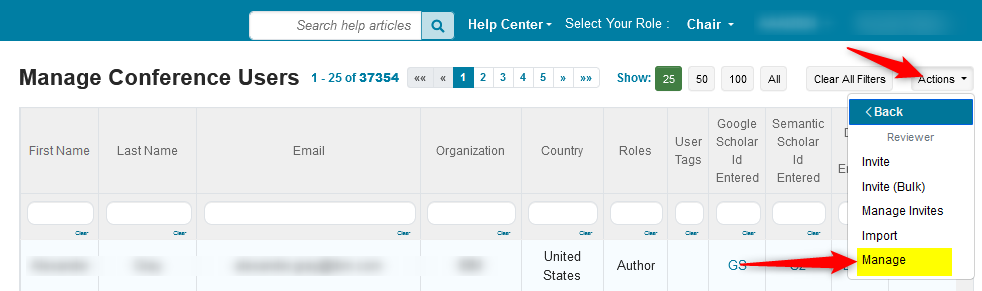
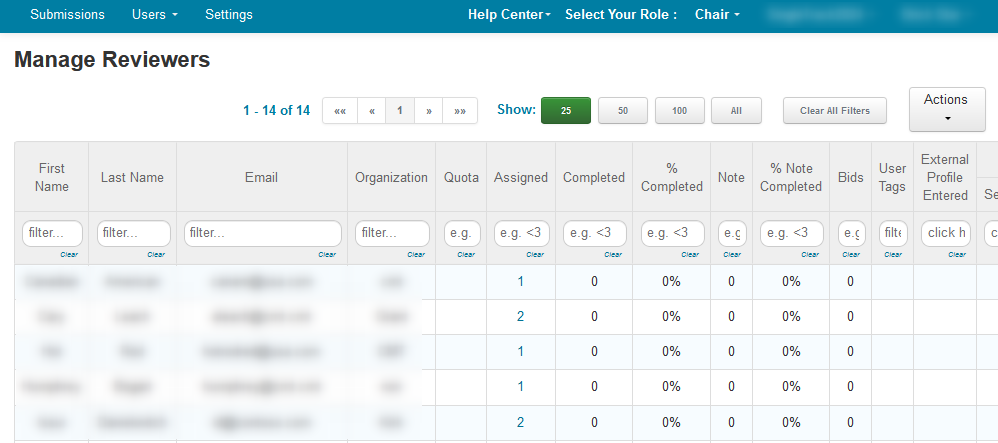
This brings up the 'Manage Reviewers' page.
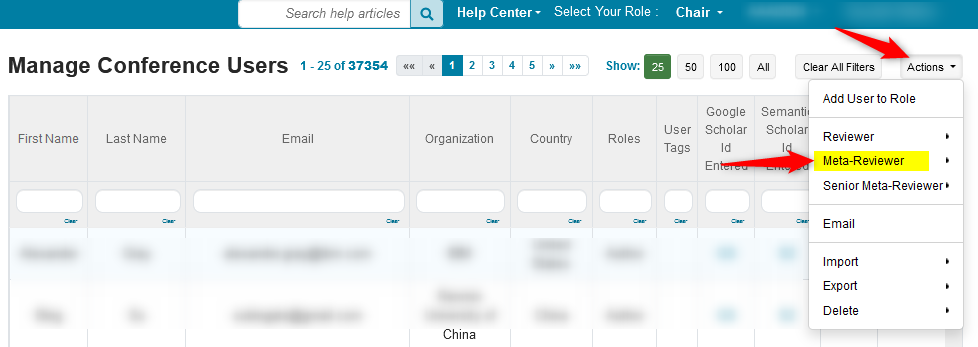
META-REVIEWER INVITE
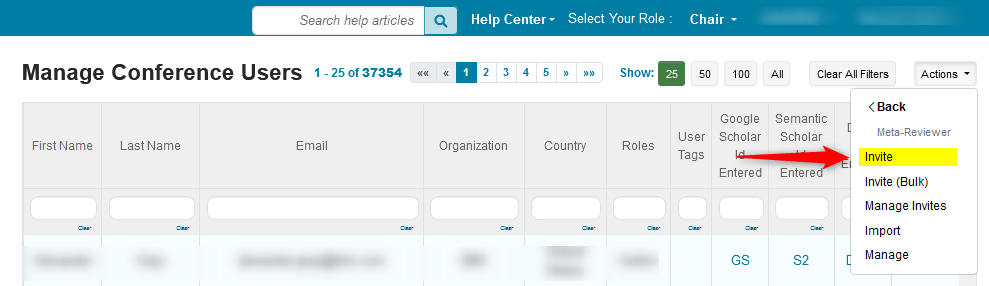
- From the 'Manage Conference Users' page, click Actions>Meta-Reviewer
- Click 'Invite' from the secondary menu
Click here for a more in-depth guide to inviting individual meta-reviewers.
META-REVIEWER INVITE (BULK)
- From the 'Manage Conference Users' page, click Actions>Meta-Reviewer
- Click 'Invite (Bulk)' from the secondary menu
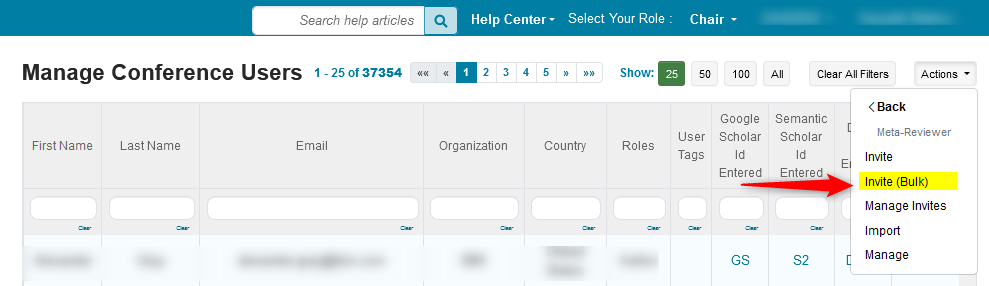
Click here for a more in-depth guide to inviting meta-reviewers in bulk.
META-REVIEWER MANAGE INVITES
- From the 'Manage Conference Users' page, click Actions>Meta-Reviewer
- Click 'Manage Invites' from the secondary menu

Click here for a more in-depth guide to managing meta-reviewer invites.
META-REVIEWER IMPORT
- From the 'Manage Conference Users' page, click Actions>Meta-Reviewer
- Click 'Import' from the secondary menu
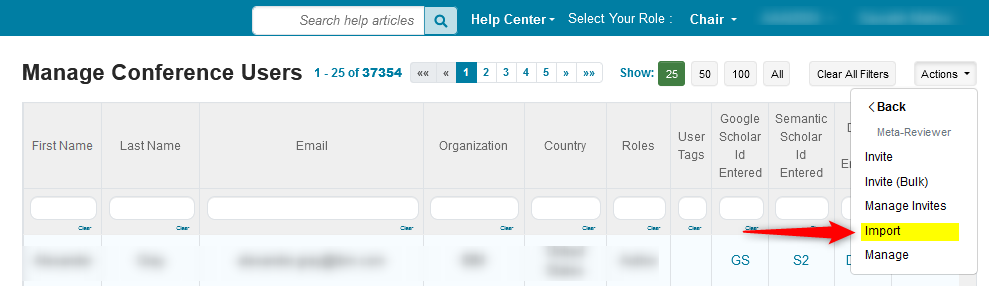
Click here for a more in-depth guide to importing meta-reviewers.
META-REVIEWER MANAGE
- From the 'Manage Conference Users' page, click Actions>Meta-Reviewer
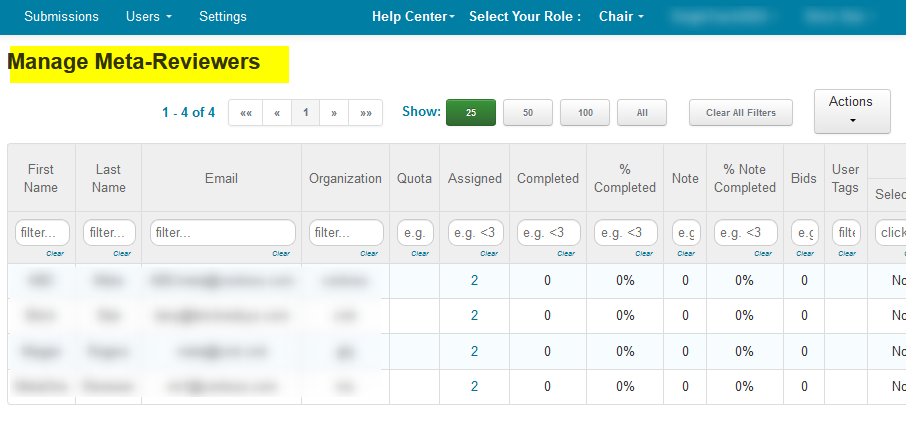
- Click 'Manage' from the secondary menu
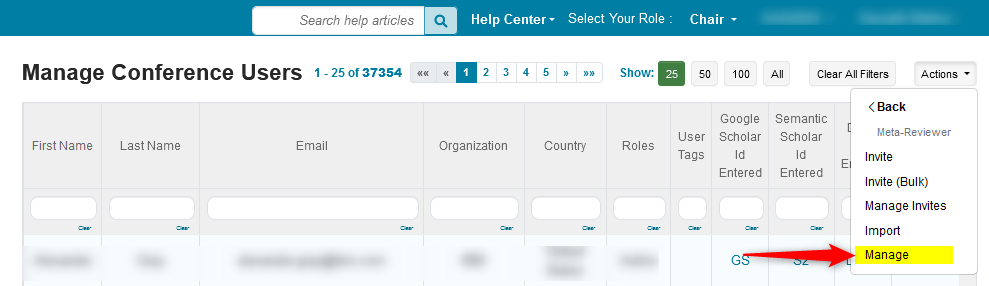
This brings up the 'Manage Meta-Reviewers' page.
SENIOR META-REVIEWER INVITE
- From the 'Manage Conference Users' page, click Actions>Meta-Reviewer
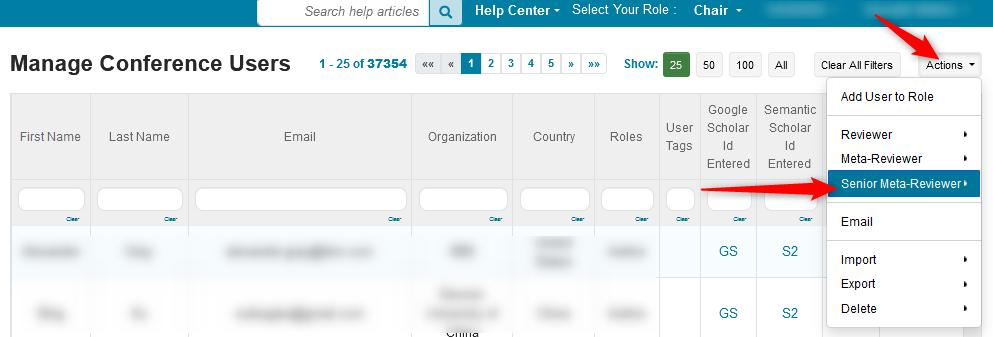
- Click 'Invite' from the secondary menu
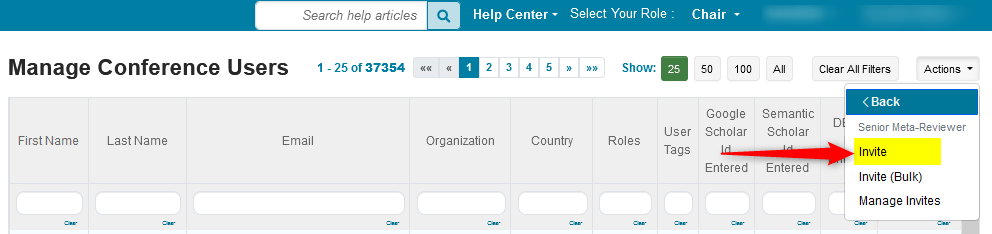
Click here for a more in-depth guide to invting individual senior meta-reviewers.
SENIOR META-REVIEWER INVITE (BULK)
- From the 'Manage Conference Users' page, click Actions>Meta-Reviewer
- Click 'Invite (Bulk)' from the secondary menu

Click here for a more in-depth guide to inviting senior meta-reviewers in bulk.
SENIOR META-REVIEWER MANAGE INVITES
- From the 'Manage Conference Users' page, click Actions>Senior Meta-Reviewer
- Click 'Invite (Bulk)' from the secondary menu
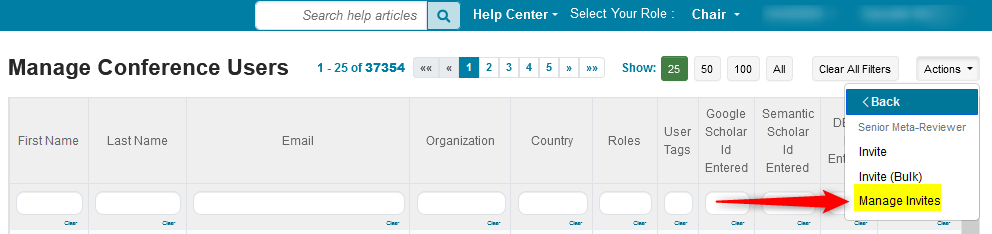
Click here for a more in-depth guide to managing senior-meta-reviewer invites.
Emails can be sent from this page. The chair can elect to filter it for specific criteria or email all users.
- Click Actions>Email
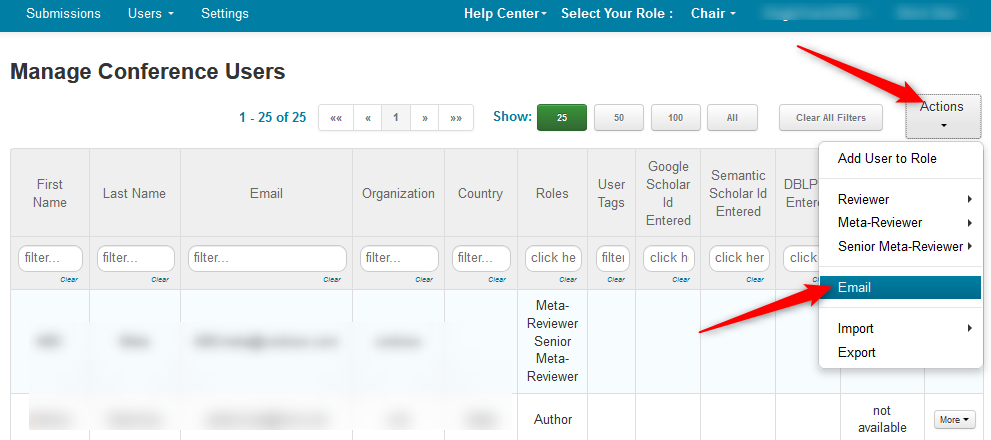
The 'Send Email' page opens. The chair can elect to use a premade template or write a new email, possibly using placeholders.
- Click 'Preview & Send emails.'

IMPORT DOMAIN CONFLICTS
- From the 'Manage Conference Users' page, click Actions>Import
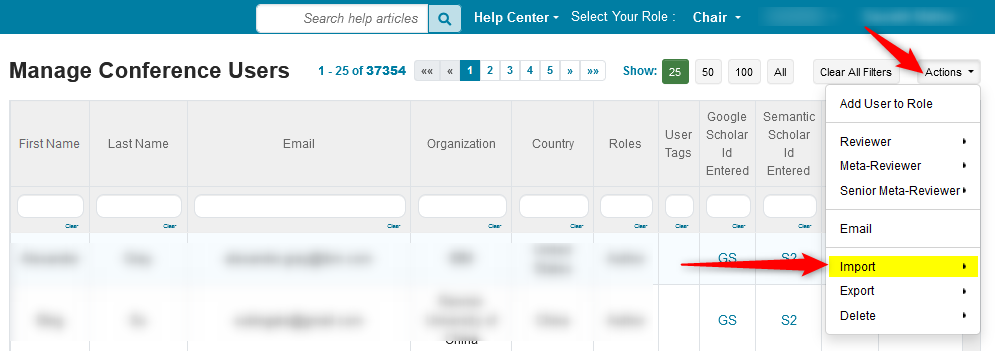
- Click 'Invite (Bulk)' from the secondary menu
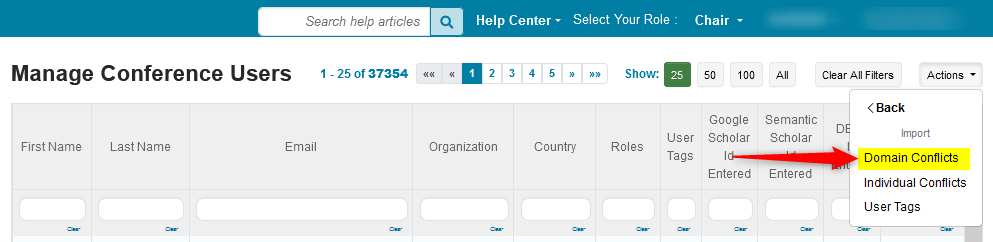
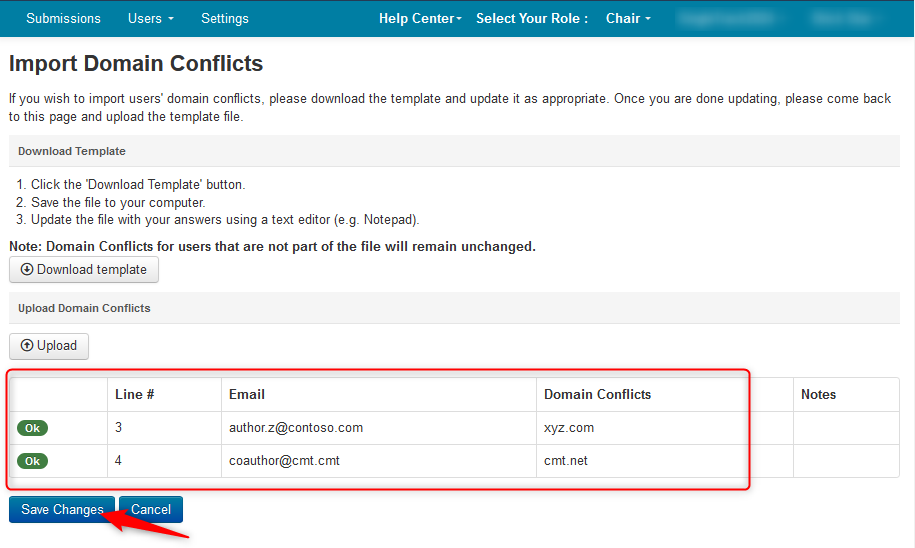
The 'Import Domain Conflicts' page opens.
- Click 'Download Template'
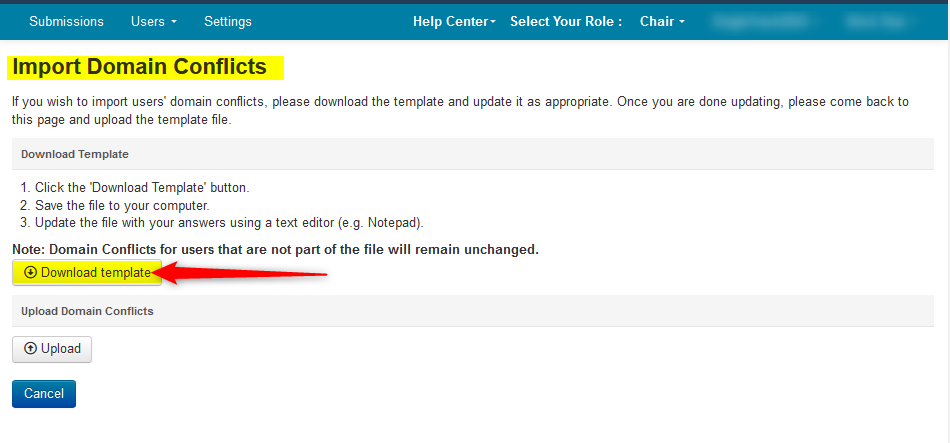
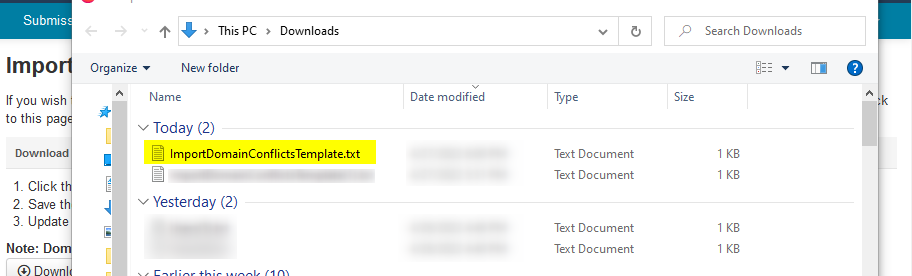
- Fill out the template with the emails and domains, then save it.

- On the 'Import Domain Conflicts' page, click 'Upload'
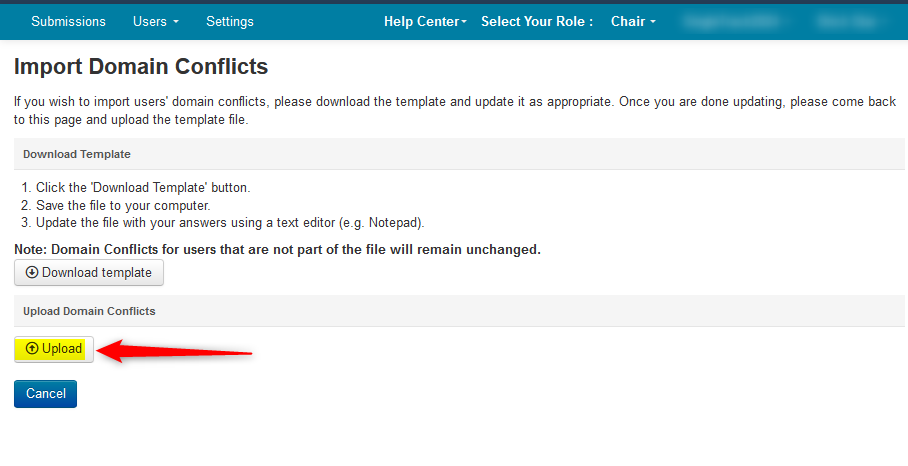
- Select the file
- Verify the information then click 'Save Changes'
IMPORT INDIVIDUAL CONFLICTS
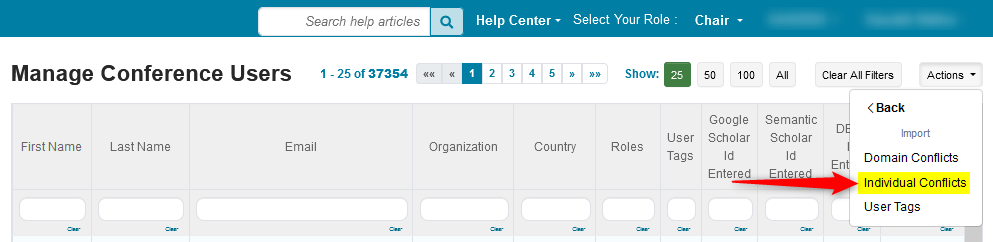
- From the 'Manage Conference Users' page, click Actions>Import
- Click 'Individual Conflicts' from the secondary menu
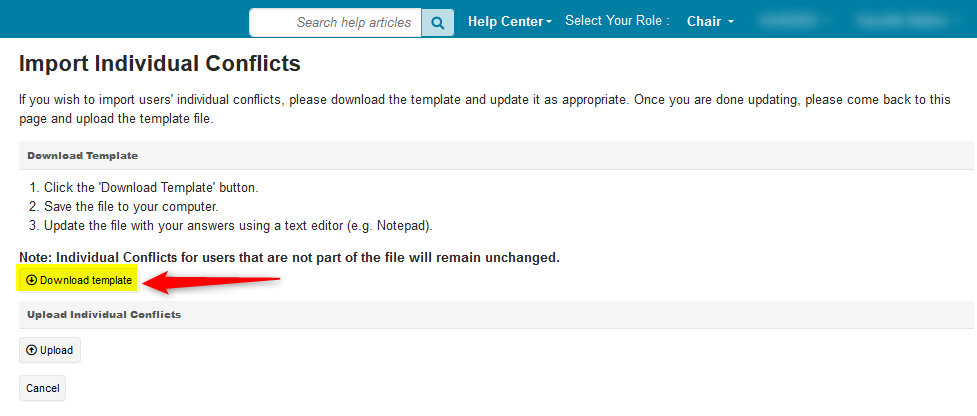
The 'Import Individual Conflicts' page opens.
- Click 'Download Template'
- Fill out the template with the emails and domains, then save it.
- On the 'Import Individual Conflicts' page, click 'Upload'
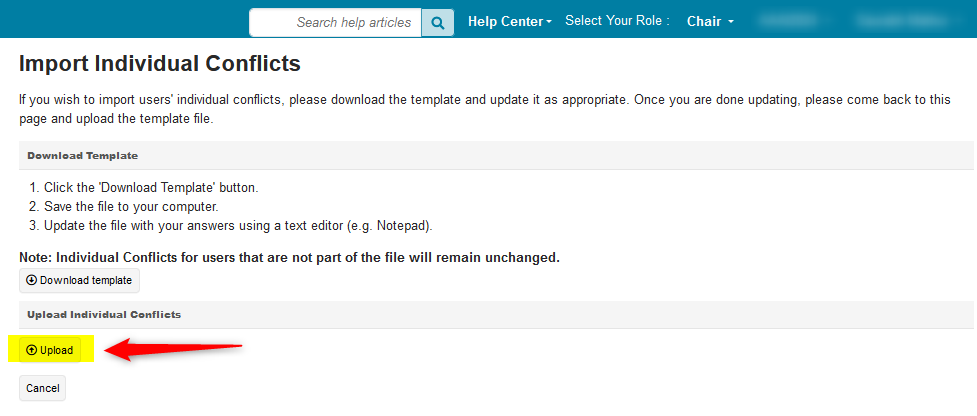
- Select the file
- Verify the information then click 'Save Changes'
IMPORT USER TAGS
- From the 'Manage Conference Users' page, click Actions>Import
- Click 'User Tags' from the secondary menu
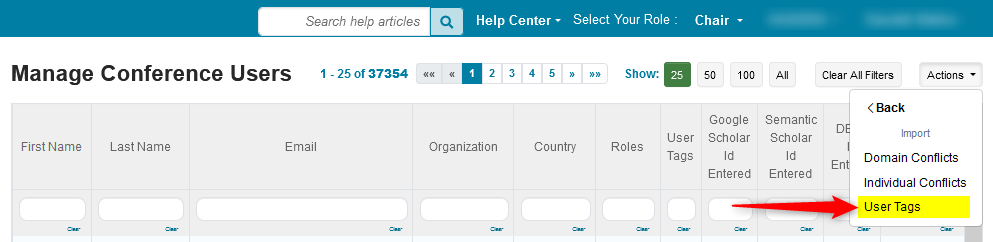
The 'Import User Tags' page opens
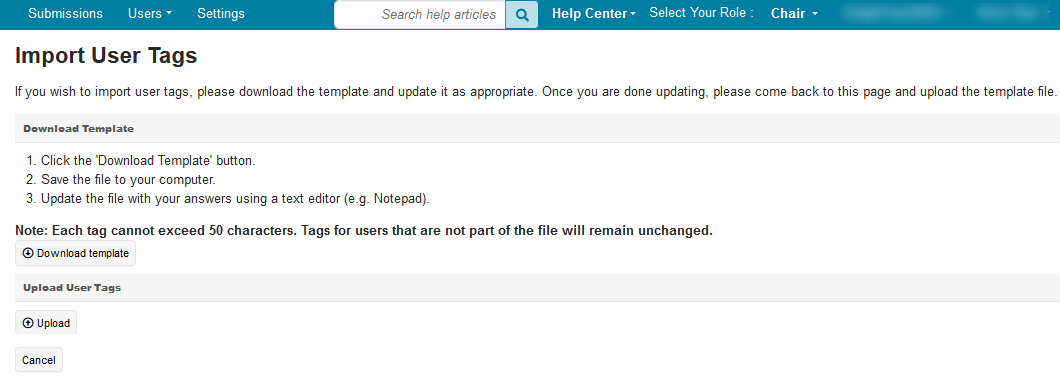
Click here for a more in-depth guide to importing user tags.
EXPORT
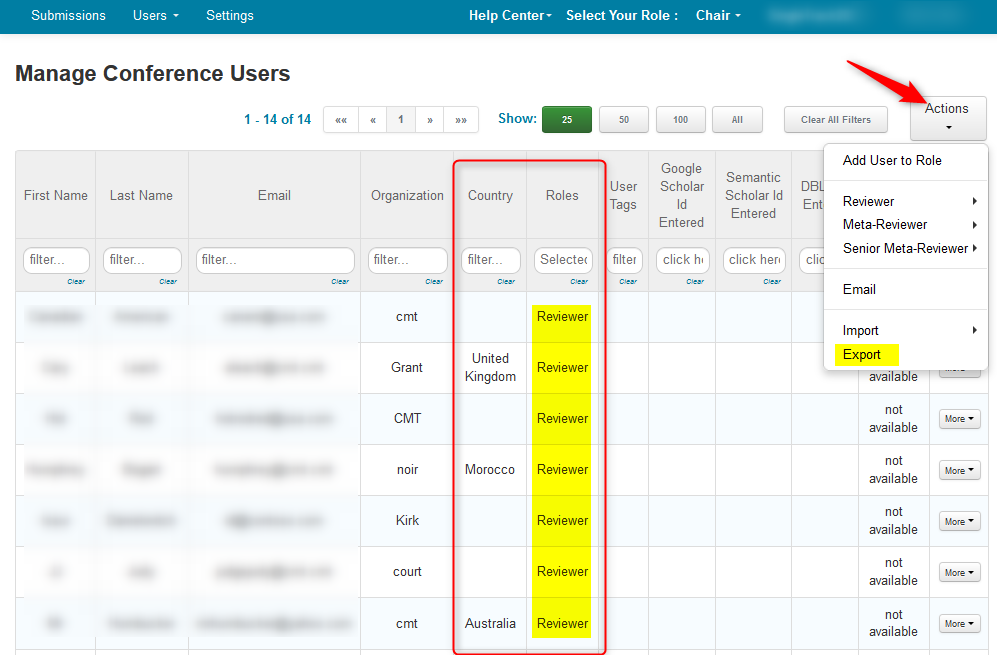
- From the 'Manage Conference Users' page, click Actions>Export
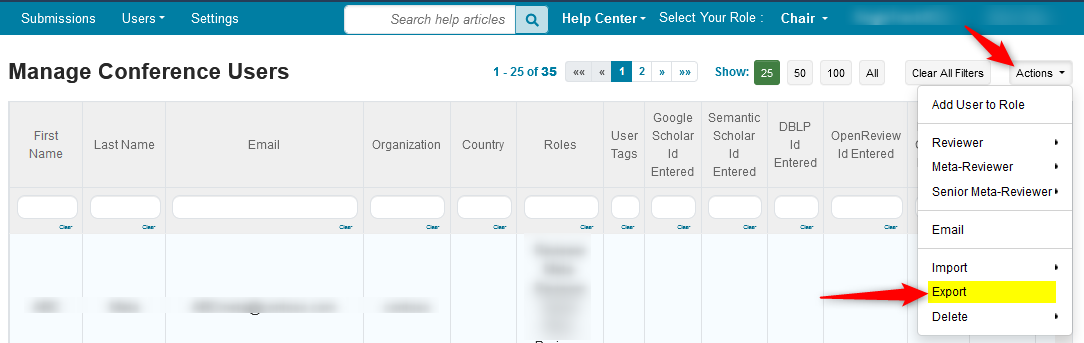
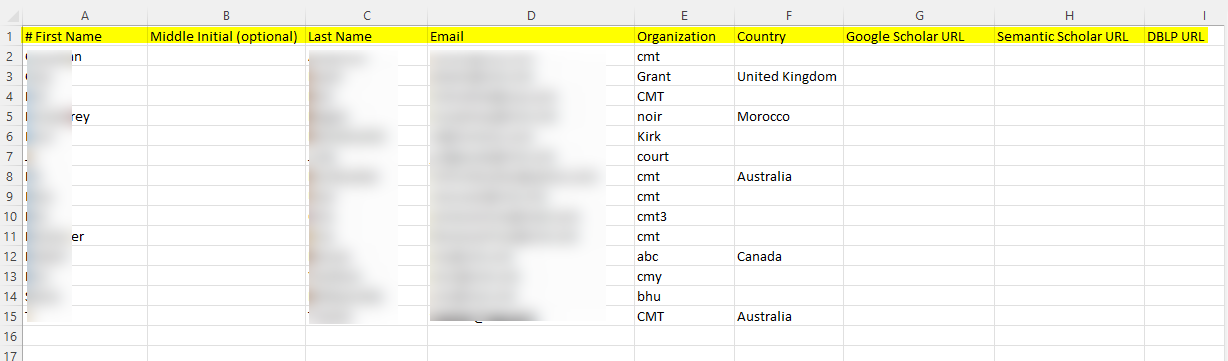
These are the columns that are exported to xml to be then transferred to Excel.
First Name
Middle Initial (optional)
Last Name
Email
Organization
Country
Roles
Last Visit
Google Scholar URL
Semantic Scholar URL
DBLP URL
OpenReview Id
Domain Conflicts
Individual Conflicts
EXAMPLE OF FILTERING FOR EXPORT
For this example, the chair would like to know the countries reviewers have listed in their profile.
Filter the Roles column for Reviewer.
(In this example the number of users drops to 14 from 25)Click Actions>Export
A text file with the same information in the 'Manage Conference Users' page opens.
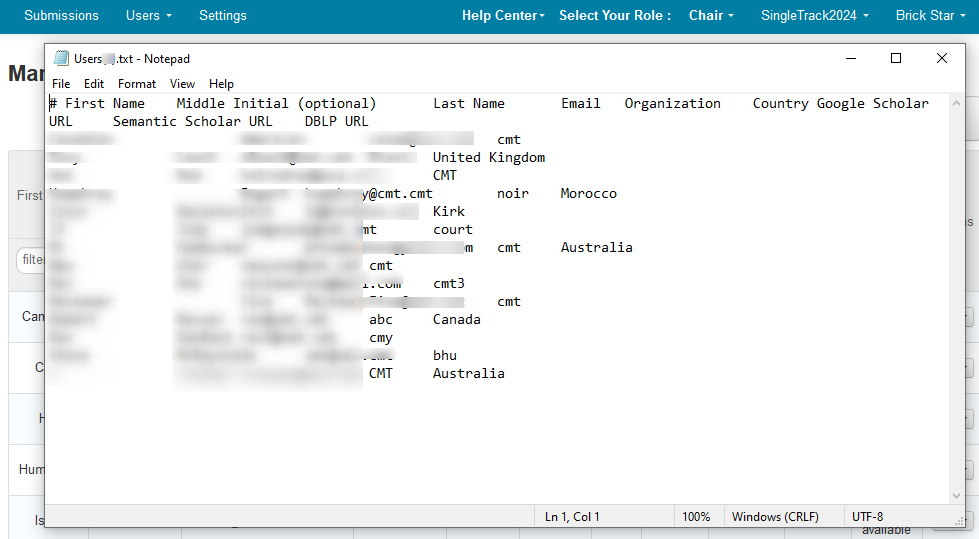
- Copy the contents and paste into an Excel document to view easily.